
Qwen Image Edit NSFW Workflow: Change One Detail Without Rebuilding the Whole Image
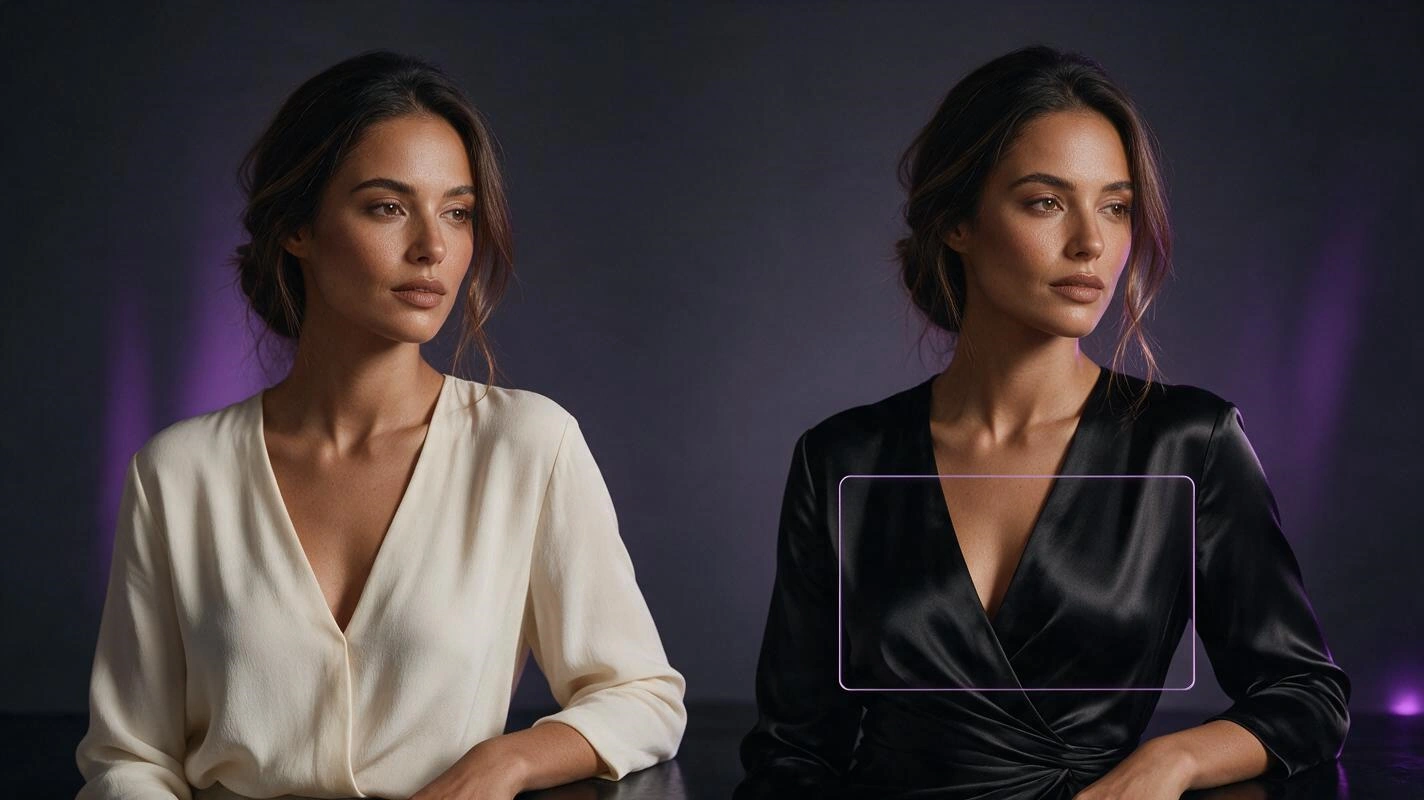
A Qwen Image Edit NSFW workflow starts with an image that is already mostly right. Instead of generating the character and composition again, you describe the specific detail that should change and identify what must remain consistent.
This approach works well when you like the character, pose, camera angle, and overall scene but want to replace an outfit, adjust an expression, change the environment, remove an unwanted object, or correct one visible problem.
The key is not writing a longer prompt. It is controlling the scope of the edit.
Quick Answer: When Should You Use Qwen Image Edit?
Use Qwen Image Edit when most of the source image should remain recognizable.
It can be useful when you want to:
- Replace an outfit while preserving the character and pose.
- Change the background without rebuilding the subject.
- Adjust an expression while keeping the face recognizable.
- Add or remove a specific object.
- Use another image as a clothing, environment, or style reference.
- Repair one problem in an otherwise usable NSFW image.
Start over with image generation when the character, pose, camera, interaction, and setting all need to change. If almost nothing from the source should remain, editing offers little advantage over generating a new image.
Start With an Image Worth Preserving
Before writing the edit prompt, decide what already works.
A suitable source image normally has:
- A recognizable character.
- A usable pose and composition.
- Clear facial and body details.
- No severe anatomical errors.
- Enough resolution to support another generation pass.
- Only one or two important problems to fix.
Editing becomes less reliable when the face is already distorted, limbs are heavily obscured, or the desired result requires a completely different pose.
The image should provide the visual foundation. The prompt should describe the change.
Separate What Changes From What Stays
A useful Qwen Image Edit prompt has two jobs:
- State the requested change.
- Protect the details that should remain consistent.
A simple structure is:
Change:
[Describe the one main edit.]
Preserve:
[Name the character, pose, composition, camera, lighting, background,
and visual details that must remain unchanged.]
For example:
Replace the current outfit with a fitted black satin dress.
Keep the same character, facial features, hairstyle, body proportions,
pose, hand positions, camera angle, framing, lighting direction,
background, and realistic image style. Do not add another character.
The prompt does not need to describe everything visible in the image again. It should make the editing boundary clear.
Make One Important Edit at a Time
Combining several major requests gives the model too many reasons to reinterpret the image.
Changing the outfit, pose, background, expression, lighting, and camera angle in one generation may produce a new image that only loosely resembles the source. Even if every instruction is understood, the model must rebuild the relationships between the character, clothing, limbs, shadows, and environment.
A more controlled workflow is:
- Make the largest necessary change.
- Check the face, body, pose, and composition.
- Save the strongest result as the new source.
- Make the next smaller edit.
- Leave color and lighting refinements until the structure is stable.
Do not continue editing a result that already contains identity or anatomy problems. Repeated edits can make those errors harder to repair.
Give Every Reference Image One Job
Some Qwen Image Edit workflows support multiple images. This can help when the target image does not contain everything needed for the edit.
For example:
- Image 1: the image being edited.
- Image 2: the outfit reference.
- Image 3: the environment or style reference.
The prompt should explain what to take from each image:
Edit Image 1. Use only the black satin outfit from Image 2.
Keep the character, face, body proportions, pose, framing, and
background from Image 1. Do not copy the person or pose from Image 2.
Without this separation, the model may combine the identity, body shape, pose, composition, and style of several references.
Why Qwen Image Edits Go Wrong
The Character Changes
The prompt describes the new detail but does not protect the face, hairstyle, body proportions, or other recognizable features.
Try this: Name the identity details that matter and avoid requesting several structural changes at once.
The Body or Pose Changes
The requested edit affects the character’s outline, clothing boundaries, hands, or areas where body parts overlap.
Try this: Explicitly preserve the pose and visible hand positions. If the workflow supports masking, restrict the editable area.
The Background Also Changes
The model interprets the instruction as a new scene rather than a local edit.
Try this: State that the existing environment, perspective, framing, and lighting direction must remain unchanged.
The Result Looks Softer or More Artificial
Generative editing may rebuild texture rather than preserve the original pixels. Repeated passes can gradually remove skin texture, fabric detail, and facial sharpness.
Try this: Return to the cleanest earlier result and make a smaller, more specific change.
The Request Is Rejected or Simplified
Qwen Image Edit is a model family, not one identical service. The checkpoint, prompt-processing component, workflow, and hosting platform may apply different content rules.
A workflow described as NSFW-compatible does not guarantee that every component will interpret or accept the same request.
When Should You Stop Editing and Generate Again?
Continue with Qwen Image Edit when the source still has a recognizable character, useful pose, and stable composition.
Generate a new image when:
- The required pose is completely different.
- The number of characters must change.
- The camera needs to move to another viewpoint.
- The main interaction must be rebuilt.
- The source contains serious anatomy problems.
- Several editing passes have damaged the face or texture.
If the foundation no longer works, use the AINSFW.AI NSFW image generator to create a stronger starting image instead of forcing another edit.
Once the edited or newly generated image looks right, turn it into motion with the AINSFW.AI NSFW image-to-video generator. The still image establishes the character, pose, clothing, and composition; the video prompt only needs to describe how that finished image should begin moving.
Frequently Asked Questions
Can Qwen Image Edit Keep the Same NSFW Character?
It can preserve a recognizable character, but the result depends on the source image, workflow, edit size, and prompt. Changes near the face, body outline, pose, or overlapping limbs carry a higher risk of identity drift.
Should I Use a Mask With Qwen Image Edit?
Use a mask when the change must remain inside a clearly defined area. It can reduce unwanted changes elsewhere, but shadows, clothing edges, and nearby body parts may still need to be regenerated.
Can Qwen Image Edit Use Multiple Reference Images?
Some current workflows accept multiple images. Assign one role to each reference and state which image provides the character, clothing, environment, or style. Otherwise, the model may mix details from different sources.
Why Does Qwen Change Details I Did Not Mention?
Generative editing is not the same as replacing a few pixels in traditional editing software. The model may rebuild nearby areas to make the requested change look connected. A clear preserve list helps limit these unwanted changes.
Is Every Qwen Image Edit Workflow Unrestricted?
No. Different checkpoints, prompt-processing components, interfaces, and hosted services may have different NSFW support. Check the complete workflow rather than assuming every service using the Qwen name behaves identically.
Should I Edit the Image or Generate a New One?
Edit when most of the image already works and the requested change is specific. Generate again when the character, pose, interaction, camera, and setting all need to change.