
AINSFW.AI / Practical guide
Unfiltered AI: How to Choose Chat, Image & Video Tools
AINSFW brings character chat, image creation and video workflows into one place. Explore a scene in chat, create your character’s look or make it move. Start with the result you want, right in your browser.
“Unfiltered AI” and “uncensored AI” commonly describe tools with fewer content restrictions. At AINSFW, that includes adult fictional creation for users aged 18+. Our chat, image and video tools follow the content limits below.
- Do I need a powerful PC?
- No. Use a phone or computer browser. We run generation online.
- Do I need an account?
- Yes, to generate images or videos and send chat messages. Free generation has usage limits.
- Will other users see my creations?
- Your generations are private by default. We do not show them to other users or use them as public examples.
- Does “unfiltered” mean anything goes?
- We support adult fictional content. Content involving minors and non-consensual deepfakes of real people are prohibited.
01 / The guide
Which chat, image or video tool should I use?
Choose unfiltered AI chat for dialogue and roleplay, an image generator for a still picture, or a video tool for movement. You can start with images or video directly. Each link opens the relevant AINSFW tool or workflow overview.
Chat / A character and a conversation idea
Talk to a character or explore NSFW roleplay
Open character chat for a fictional conversation. For NSFW roleplay, explore our dedicated page for story-led scenarios with adult characters. Start with who you are, the setting and what happens next.
Unfiltered AI images: tags or a written prompt?
Choose tags when you want to pick from available attributes. Choose a written prompt when you have a particular character, outfit or setting in mind. Our unfiltered AI image generators create a new still picture; to animate one you already have, use image-to-video below.
Image / Selected tags
Choose tags for a new image
Pick the image attributes you want from the available tags, then generate a new picture. This route uses your selections; it does not edit an uploaded image.
Image / A written character description
Describe a realistic or anime character
Write the appearance, clothes, setting and style of an adult fictional character. Choose realistic photography or an anime look, then generate a new still image.
Image examples: realistic and anime
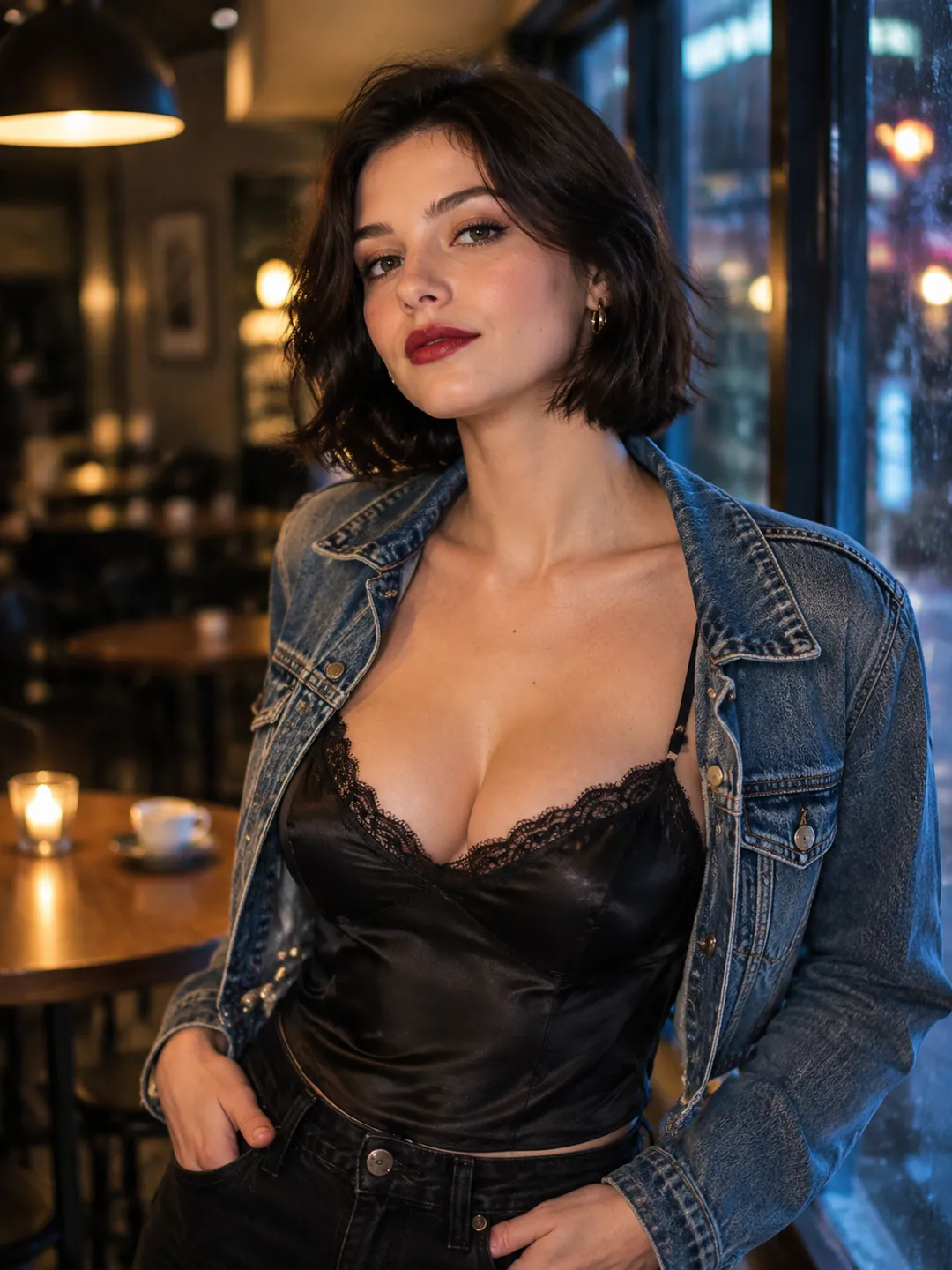
Realistic character / starting image
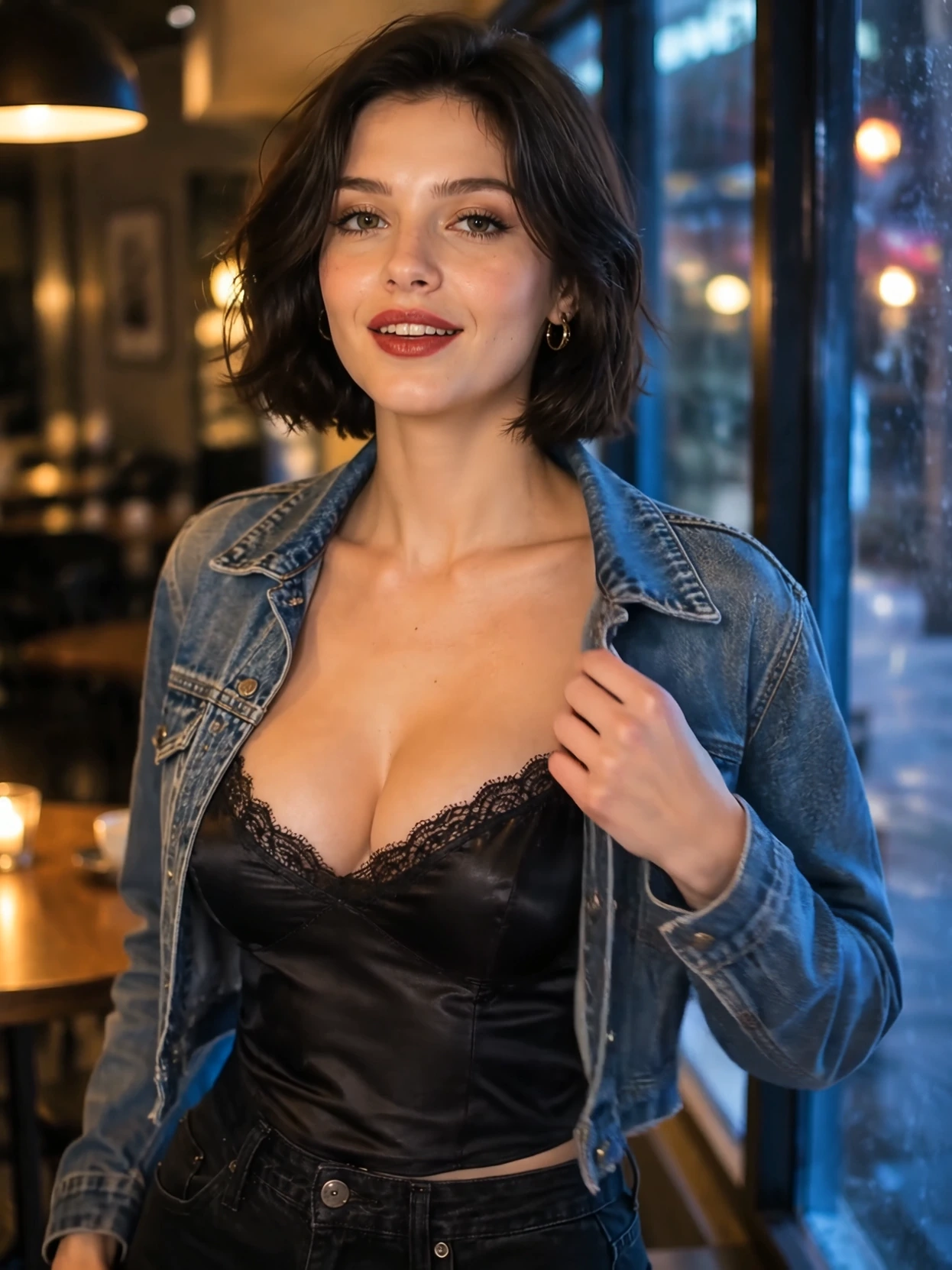
Short dark hair, a denim jacket and a warmly lit café. This portrait provides a visual starting point for the image-based video examples.
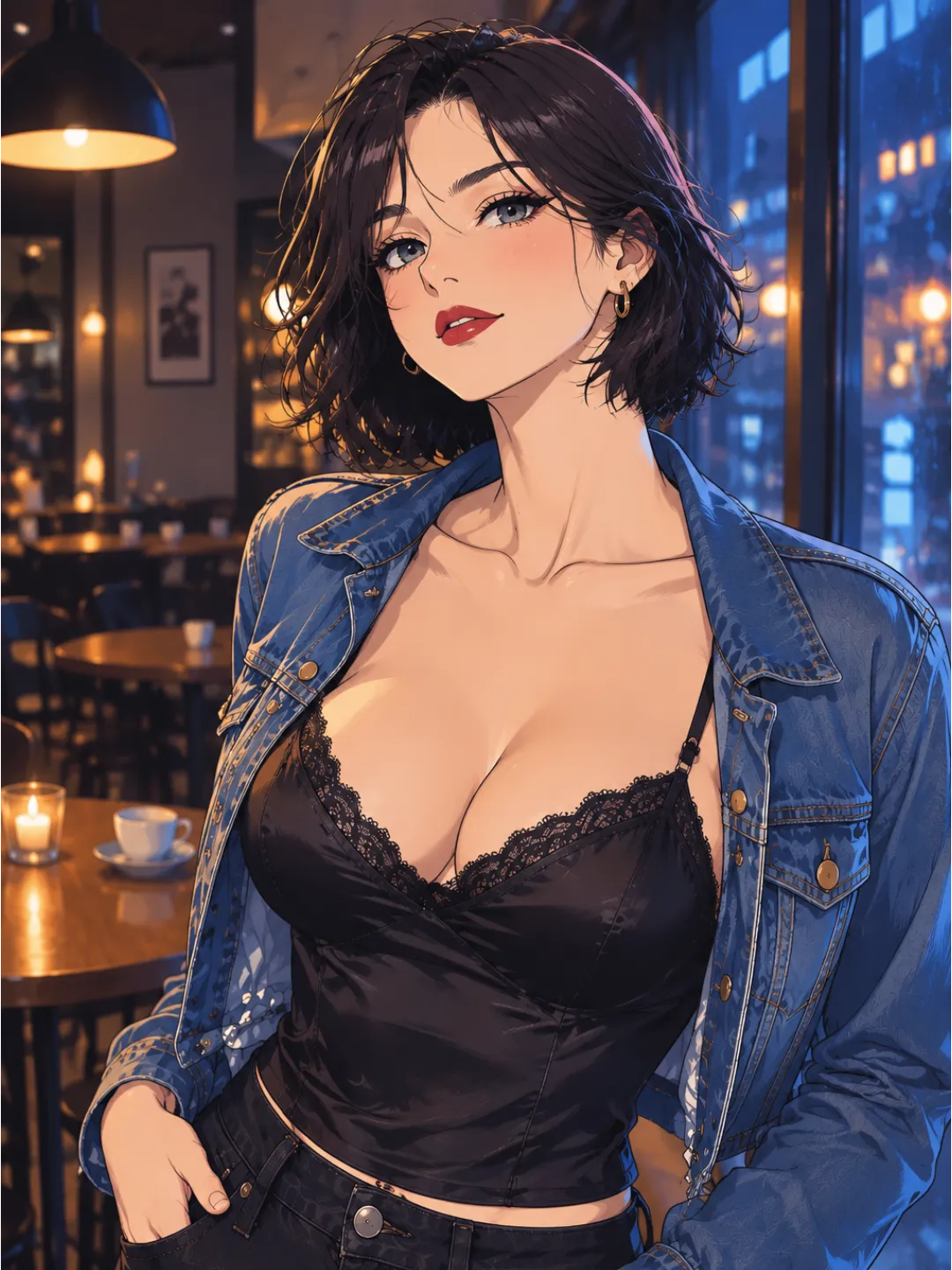
Anime character / style example
A similar outfit, setting and composition in an anime style. Choose the visual style before moving on to video.
Compare how the same character details read in each style. For image-to-video, keep a JPEG or PNG copy of the portrait you want to animate.
Unfiltered AI video: text, image or reference?
Choose your video route by what you already have and what you want to change: animate the café portrait, describe a new scene from scratch or use a character picture to guide a different setting.
Image-to-video / café animation
Example prompt · 3:4 portrait
Animate the adult fictional woman in the reference portrait. She gently brushes back her short dark hair and smiles at the camera. Keep her denim jacket, black lace-trim top and café setting unchanged. Fixed camera, warm light, 3:4 portrait composition.
Video / One JPEG or PNG + a motion prompt
Image-to-video: animate a picture I already have
Upload your starting picture and describe what should move. Choose this when the character’s appearance is already in an image you want to use.
Animate an imageText-to-video / yacht scene
Example prompt · 16:9 landscape
A fictional adult red-haired woman in an emerald-green backless dress stands on a yacht at sunset. She looks back over her shoulder, then turns toward the sea as the camera pulls back. Golden light on the water, gentle movement, 16:9 landscape composition.
Video / A written scene description
Text-to-video: start without a picture
Describe the subject, setting and action. Text-to-video starts from your words, so you do not need to create or upload a still image first.
Make a video from textReference-to-video / new setting
Example prompt · 3:4 portrait
Use the adult fictional woman in the café portrait as the character reference. Keep her short dark hair, facial features and denim jacket. Place her in a park at dusk with softly glowing lamps. Gentle head movement, fixed camera, 3:4 portrait composition.
Video / A reference image + a new scene description
Reference-to-video: put my character in a new scene
Want your character in a different setting? Reference to Video uses a picture to guide the character’s appearance in a new scene. Explore our dedicated page for this workflow; choose image-to-video above when you want to animate the starting picture itself.
Explore Reference to Video- Can I use unfiltered AI for free?
- Yes. Free generation has usage limits, and you need to sign in to generate. The selected tool shows the allowance and any upgrade prompt for your account. Free access does not mean unlimited generations.
- Can I use it on my phone?
- Yes. Open the tools in your mobile browser, sign in, and choose tags, enter a prompt or upload an image. You do not need to install an app or an AI model.
- Can I edit just one area of an existing picture?
- These routes create a new image or animate a whole starting picture. They do not provide a brush or mask for changing only one selected area. For animation, use image-to-video; for a fresh picture, use tags or a written description.
02 / The guide
What can I do with unfiltered AI chat?
Choose an adult fictional character and set the scene. Our chat is for dialogue and roleplay, with the same content limits described above. Here are four things to know before moving from a conversation to images and video.
- Is this a replacement for a general-purpose AI assistant?
- Our chat is for fictional character conversations and roleplay. Replies belong to the story; use a factual assistant for research or professional questions.
- How do I continue an earlier story?
- Free chat history is saved for three days. For continuity, keep your own short recap of the character, relationship and latest scene, then paste it when starting a new conversation. Saved history is different from a character remembering a new chat.
- Are character photos included in free chat?
- Character photos are not included in free chat. To create a picture directly, describe your character in our realistic or anime image generator.
- How do I turn a chat character into a video?
- Copy the character’s appearance and setting into an image prompt, create a still image, then upload it to image-to-video and describe the movement. You choose and carry over those details at each step.
03 / The guide
What should I type for my first image or video?
Start with one character and one scene. These sample inputs show what to put in each form; adapt them to your own fictional character.
1. Describe one adult fictional character
For a new image, choose the realistic or anime generator. Include the character, clothes, setting, lighting and framing. If you prefer picking options, use the tag generator instead.
Example image prompt
An adult fictional woman in her thirties, short dark hair, wearing a denim jacket, standing in a warmly lit café, waist-up portrait, realistic photography.
2. Choose the still image before adding movement
Check the face, hands, clothing and background. Keep the image that matches your character, then upload that one JPEG or PNG to image-to-video. Avoid a collage or a crowded scene for your first attempt.
Example motion prompt
She turns slightly toward the camera and smiles. The camera stays still. Gentle movement, with the café background unchanged.
3. Change one thing when you retry
If the face changes during motion, try a smaller movement. If the framing is wrong, change the camera instruction. Keep the same starting image so you can see what your prompt change actually did.
No starting image?
Use text-to-video and combine the character, setting and one action in a single scene description. Choose image-to-video when you already have a particular look to preserve.
For your first attempt, keep the scene simple. Review the result before saving or sharing it.
04 / The guide
Do I need a GPU for unfiltered AI? Can I use it offline?
You can use unfiltered AI online with AINSFW without a dedicated GPU or model installation. We run generation online, so you need an internet connection. A phone or ordinary laptop can access the browser tools. For offline video generation, compare the local setups below.
What would I need to run video generation locally?
To generate entirely on your own computer, you need a local setup. ComfyUI is a free application that connects an AI model and generation steps into a workflow. Once the software and models are downloaded, a workflow using only local components can run without sending your prompts or images to a generation service. Avoid remote API nodes if you want to keep processing on your machine.
VRAM is memory on your graphics card; RAM is your computer’s working memory. A model fitting in memory tells you it may run, not how quickly you can finish a project. Resolution, frame count, model size and simultaneous jobs all affect the workload.
Which setup matches how often I create?
The tiers below are our planning recommendations for local video, not model-wide minimums or measured speed promises. They assume a compatible dedicated GPU and one generation at a time. The RAM figures allow room for offloading and other applications.
- Try a few short clips on the PC I already own
8–12GB dedicated VRAM; plan for 32GB system RAM
Start with a compact workflow such as ComfyUI’s Wan2.2 5B template. Generate one clip at a time, keep the supplied settings and expect memory-saving offloading. Use this to learn the process before buying hardware.
- Make short clips regularly and compare prompt variations
16GB dedicated VRAM; 32–64GB system RAM
We would start here for regular local experimentation. It gives more room to choose a compatible workflow, including the 14GB-offloaded HunyuanVideo-1.5 example below. Queue variations one at a time; 16GB does not make every model fit.
- Use larger workflows with more memory headroom
24–32GB dedicated VRAM; plan for 64GB system RAM
We would budget this capacity for more local workflow options. A longer story can still be made on a smaller card by generating its shots sequentially. Choose the model and settings before upgrading; render speed also depends on the GPU itself.
Use an SSD and check the total download size before installing. A workflow can need a video model, a text encoder and a VAE, plus the application, temporary files and saved outputs. Leave room for all of them. A model file’s size on disk is not its peak VRAM requirement.
One configuration will not cover every popular model. The examples below range from an 8GB fit statement to an 80GB command requirement. Match the exact model, precision, workflow and settings. Quantization stores weights at lower precision; offloading moves components between GPU and system RAM. Both can change the memory requirement and performance.
Compare model requirements: 8GB fit, 14GB minimum and larger setups
- ComfyUI + Wan2.2 TI2V-5B
Documented fit: 8GB VRAM with native offloading
This is a fit statement for one template, rather than a universal minimum or a speed recommendation. Offloading moves model components to system RAM. Use its matching model files and test the supplied settings on your machine.
- HunyuanVideo-1.5: official local setup
Official minimum: 14GB GPU memory with offloading
The project specifies an NVIDIA CUDA GPU and Linux for this setup. A 16GB card clears that memory floor, but runtime also depends on the selected resolution, frame count and GPU. This is a different model and software setup from Wan in ComfyUI.
- Wan2.2 TI2V-5B: official command-line example
Official command requirement: at least 24GB VRAM
The supplied 720P command uses memory-saving options and lists a 24GB GPU. Its memory requirement differs from ComfyUI’s 8GB template even though both use the 5B model.
- Wan2.2 A14B: official single-GPU examples
Official command requirement: at least 80GB VRAM
The listed 720P text-to-video and image-to-video commands need much more memory. Optimized community workflows may use less, but their requirements must be checked separately. A 24GB card is not a universal pass for 14B video generation.
Technical references: ComfyUI’s 5B workflow · Wan’s 5B / A14B requirements · HunyuanVideo-1.5 requirements.
How do I check whether my computer is ready?
1. Find your graphics card and its dedicated memory
On Windows, press Ctrl + Shift + Esc, open Performance, then GPU. Note the GPU model and the total Dedicated GPU memory. If it says 2/8GB, the total is 8GB. Shared GPU memory is borrowed system RAM; do not add it to the dedicated total.
2. Check system RAM and free storage too
In Task Manager, choose Memory for installed RAM. In File Explorer, open This PC for free disk space. Local video needs space for the video model, text encoder, VAE and saved clips; offloading also uses RAM. A VAE is the component that turns the model’s internal representation into visible frames.
3. Match the exact workflow, then try one short clip
Use the model files and default settings supplied with the workflow before increasing resolution or frame count. Close other GPU-heavy apps. An out-of-memory error means that configuration does not fit; reduce frame count or resolution and check RAM as well as VRAM. A completed clip, at a wait time you can accept, is the useful check.
On an Apple Silicon Mac, open the Apple menu → About This Mac to find the chip and memory. ComfyUI supports Apple Silicon, but unified memory is shared by the system and GPU: an 8GB Mac is not equivalent to an 8GB dedicated graphics card. Use a workflow compatible with the Apple Silicon setup.
For occasional creation, try our browser tools with your current device first. For frequent local work, test one matching workflow and time a complete clip before upgrading. For deadline-driven projects, compare the time per usable shot, including retries, with your required output. VRAM capacity alone cannot promise that throughput.
05 / The guide
What happens to my data on AINSFW?
Your generations are private by default: we do not display them to other users or use them as public examples. We process your inputs online to create your results, with account and service data used to operate and support the tools.
- 01
Can other users see my generated images or videos?
No. Your generations are private by default.
We do not show your generations to other users or use them as public examples. Downloading a result gives you a copy to keep; if you later post or share that copy, the destination’s visibility settings apply.
- 02
What do you use my information for?
We process your inputs to create your result and operate your account.
We also use account and service data for support, security, troubleshooting and service improvement. Providers that help us operate the service may process information for these purposes. This processing is separate from making your creations public.
- 03
Does generation happen on my phone or computer?
We process generation online, so your device does not need to run the AI model.
Your prompt or uploaded image is sent for processing. You can use our tools from a browser without installing a model or buying a graphics card.
- 04
How long can I return to my chat history?
We save free-account chat history for three days.
Copy any story notes you want to keep before that window ends. This is the chat history available in your account; image and video tools have their own workflows. Download the results you want to keep.
- 05
How can I request access to or deletion of my personal data?
Email us at [email protected].
Tell us which account and information your request concerns so we can help. Do not include your password.
What this means when I create
Creating a result does not publish it. Keep a local copy of work you want to retain, and save important chat notes before the free three-day history window ends. For a personal-data request, contact us at [email protected].
06 / The guide
Why is my unfiltered AI request blocked or stuck?
An unfiltered AI tool can still have account limits, content rules and technical failures. On AINSFW, a quota notice, a blocked request and a processing error need different fixes. Match what you see to the next step below.
- I see a sign-in or quota messageCheck account access and remaining usage.
- Sign in to generate. If your free allowance is used up, follow the allowance notice shown in the tool. Rewriting the prompt will not restore a quota, and a quota message does not mean the content was rejected.
- My image will not uploadCheck the file before changing the prompt.
- Our image-to-video form accepts one JPEG or PNG. If your phone saved a HEIC image, export a JPEG or PNG first. Sign in and wait for the upload to finish. To start without a picture, use text-to-video.
- My request is explicitly blockedThe content may cross a restriction.
- Use adult fictional characters and material you have permission to use. We prohibit content involving minors or underage-looking characters, non-consensual sexual content and unauthorized use of real people’s photos. If an allowed request appears to be blocked by mistake, send us the error message and time at [email protected].
- My video is waiting or processingThe job has not finished yet.
- Wait for its status to change before submitting another copy. Processing time varies with demand and the task. A queue or a long wait on its own is not evidence of content filtering.
- The job failed or the page stopped respondingKeep the error details before retrying.
- Check your connection. If the job is still processing, keep the tab open and avoid submitting a duplicate. Record the error text and time before reloading an unresponsive page. For a repeated failure, email us those details, the tool used and your browser. You do not need to attach a private source image to the first support message.
- The result changed my character or motionCheck the starting image and the requested changes together.
- If the job completed but missed your description, use the input checks below. A request to change clothes or location may conflict with a picture you want to preserve. Separate actions into shots and replace vague directions with one visible movement before retrying.
The job finished. Why did it ignore my description?
Use the café portrait from the starter example: one adult fictional woman in her thirties, short dark hair and a denim jacket. If you want to animate that picture, keep those details and describe one movement.
- 1. My text asks for a different picture
The source shows a denim jacket in a café, but the prompt asks for a red dress outdoors.
Change first: For animation, keep the clothes and setting in the source. For a new setting, choose Reference to Video; for a changed outfit, create and approve a new starting image first.
- 2. I asked for several actions in one shot
A turn, a walk and a spin each need movement and transitions. Asking for all three makes the intended moment harder to specify.
Change first: Pick the one action you need most. Make the remaining actions separate shots, then join the clips in an editor.
- 3. My direction is too vague to check
“Make it amazing” or “more cinematic” does not say what the subject or camera should do.
Change first: Name a visible change: a slight head turn, a small smile or a slow camera move. Start with one; compare the result before adding another.
Original input / competing changes
Make her walk onto a beach in a red dress, spin around, turn to the camera and look amazing and cinematic.
Revised input / one visible action
The woman turns her head slightly toward the camera and smiles. Her denim jacket and café setting stay unchanged. The camera remains still.
Keep the same source image for this retry. Compare the first, middle and last frames: is the face stable, is the jacket unchanged, and is the turn visible? If the face still drifts, reduce the head turn next. If the beach is the actual goal, switch to the new-scene route instead of repeatedly asking this café image to become a different shot.
Frame check: inspect one clip from start to finish
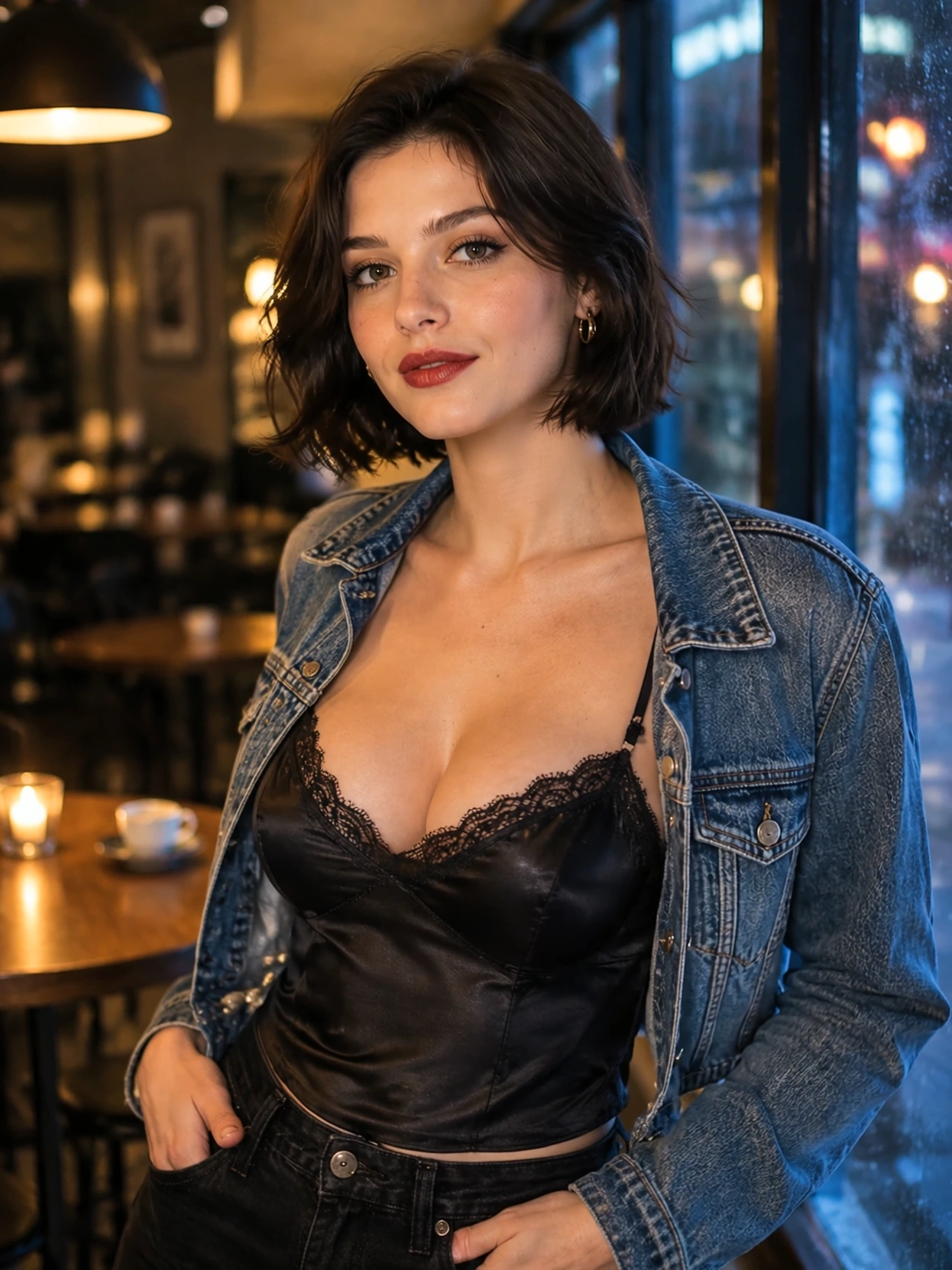
First frame / starting appearance
Use the face, denim jacket and café as your visual baseline.
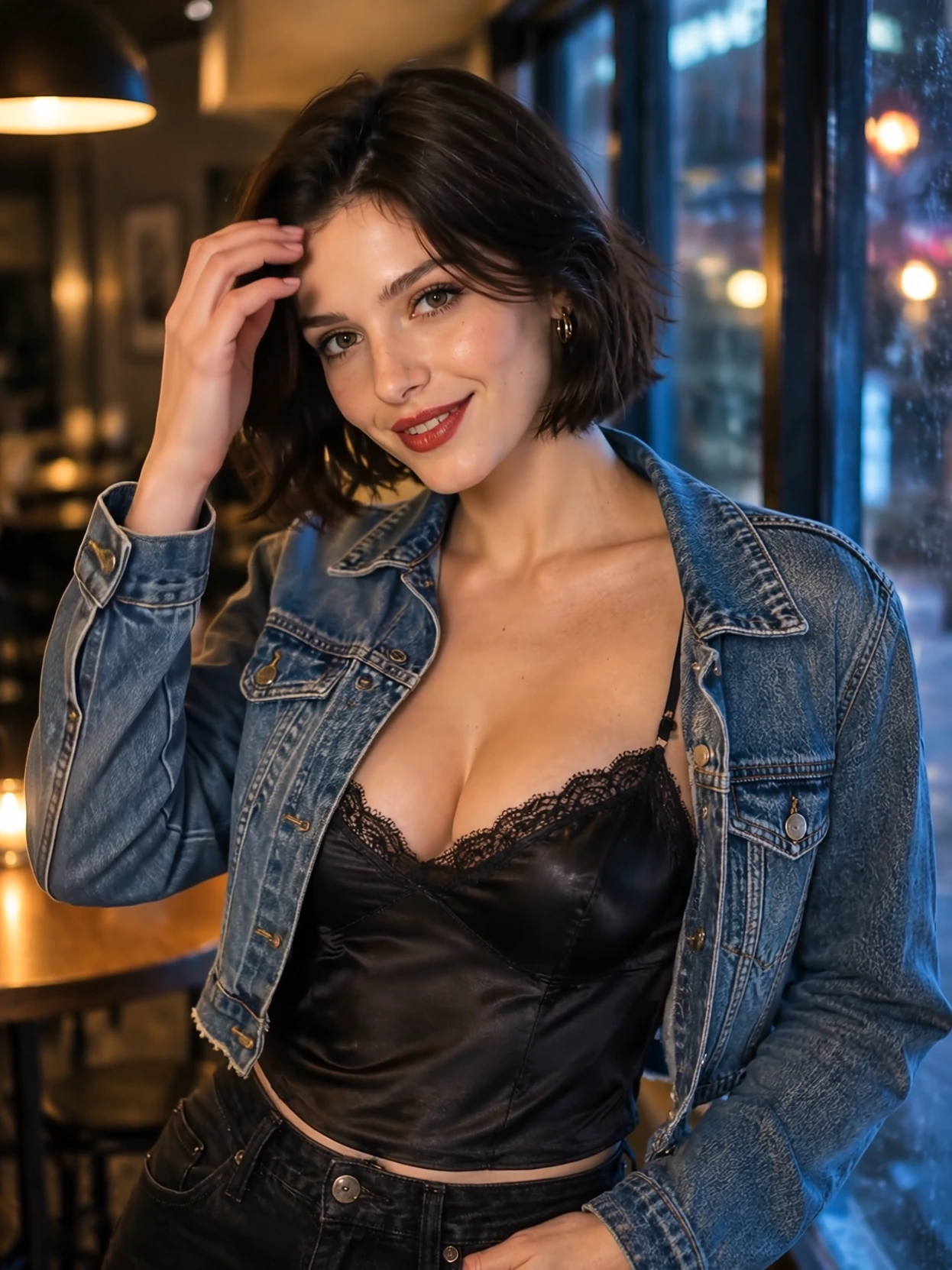
Middle frame / movement
Check facial features and clothing during movement, when changes can be easy to miss.
Last frame / ending appearance
Check the ending face, jacket and background against the first frame.
Compare the face, clothing and background across all three frames, then replay the full clip. Still frames help spot changes in appearance; playback reveals flicker and uneven motion between them.
07 / The guide
How do I finish a video without wasting more generations?
Once the access or error issue above is solved, review what you already have before generating again. A usable clip may need a trim, a new shot or an edit. Choose the next action below so you spend another generation only when the image or movement needs to change.
- The clip has a good moment, followed by a bad ending
- Keep and trim the usable part in an editor. If the action is clear before the distortion starts, you may already have the shot you need. Regenerate when the defect affects the moment you intend to keep.
- I want a longer story or several actions
- Make one shot per action and assemble the selected clips. For the café example, use an establishing shot, the character turning toward the camera, then a goodbye gesture. Carry over the same character and clothing details. Make the middle shot work before generating the rest.
- The picture works, but I need a new location
- Use Reference to Video when the reference should guide a new scene. Use image-to-video when the existing picture is already the shot you want to animate. Repeating a motion prompt will not reliably redesign the starting composition.
- I need vertical framing, captions or sound
- Choose the final shape before making more shots: 9:16 is vertical and 16:9 is landscape. Leave room around the subject for the crop and captions. Play the saved clip to check its audio; add your own narration, licensed music or subtitles in an editor when needed. Check the exported file’s dimensions rather than assuming its resolution from how it looks on the page.
- I keep retrying without getting closer
- Set an attempt limit for each shot before retrying. Record what you changed and whether the result improved. If the limit is reached, simplify the action, change the starting image or keep a shorter usable take. Compare time or credits spent per clip you actually keep, including failed attempts.
What should I save so I can continue later?
Keep the source image and chosen output in a project folder with a short note like this. Record only settings the tool actually exposes. This helps you resume and compare versions; it does not guarantee identical results on a rerun.
- Goal: one vertical café scene with an adult fictional character.
- Keep: the chosen reference image, character description and clothing.
- Change next: only the motion; keep the camera fixed.
- Save: exact prompt, visible settings, selected clip and version name.
- Stop rule: choose an attempt limit before the next generation.
For a full character or multi-shot workflow, continue with these guides:
08 / The guide
Reference notes
Our full service details: content policy · privacy policy · terms.
For the computer checks: Microsoft’s GPU memory explanation · ComfyUI system support.
Choose your next step on AINSFW
Create the character’s look, animate a picture you already have, or describe a scene from scratch. Choose the route that fits your starting material and sign in to generate.
Back to top