
Quick Answer: How Do You Use MiniMax H3 Ref2VA for NSFW Video?
Use the dedicated MiniMax H3 Ref2VA checkpoint in a compatible ComfyUI R2V workflow. Begin with one approved character image, connect it as <Picture 1>, and define the recurring subject in the prompt. Add a reference video only when you need a specific movement, camera pattern, edit structure, or continuation. Connect audio separately when it should guide a voice, music, rhythm, or reusable soundtrack.
For NSFW video, the safest production order is character identity first, simple body movement second, camera motion third, and close interaction last. Test each addition with a short clip before introducing another reference.
Ref2VA improves reference-based control, but it does not guarantee perfect identity or anatomy. Results still depend on compatible poses, clear body boundaries, consistent character images, and an unambiguous prompt.
If you do not have a stable starting character, create and approve one with an AINSFW.AI Image Generator before building the Ref2VA workflow.
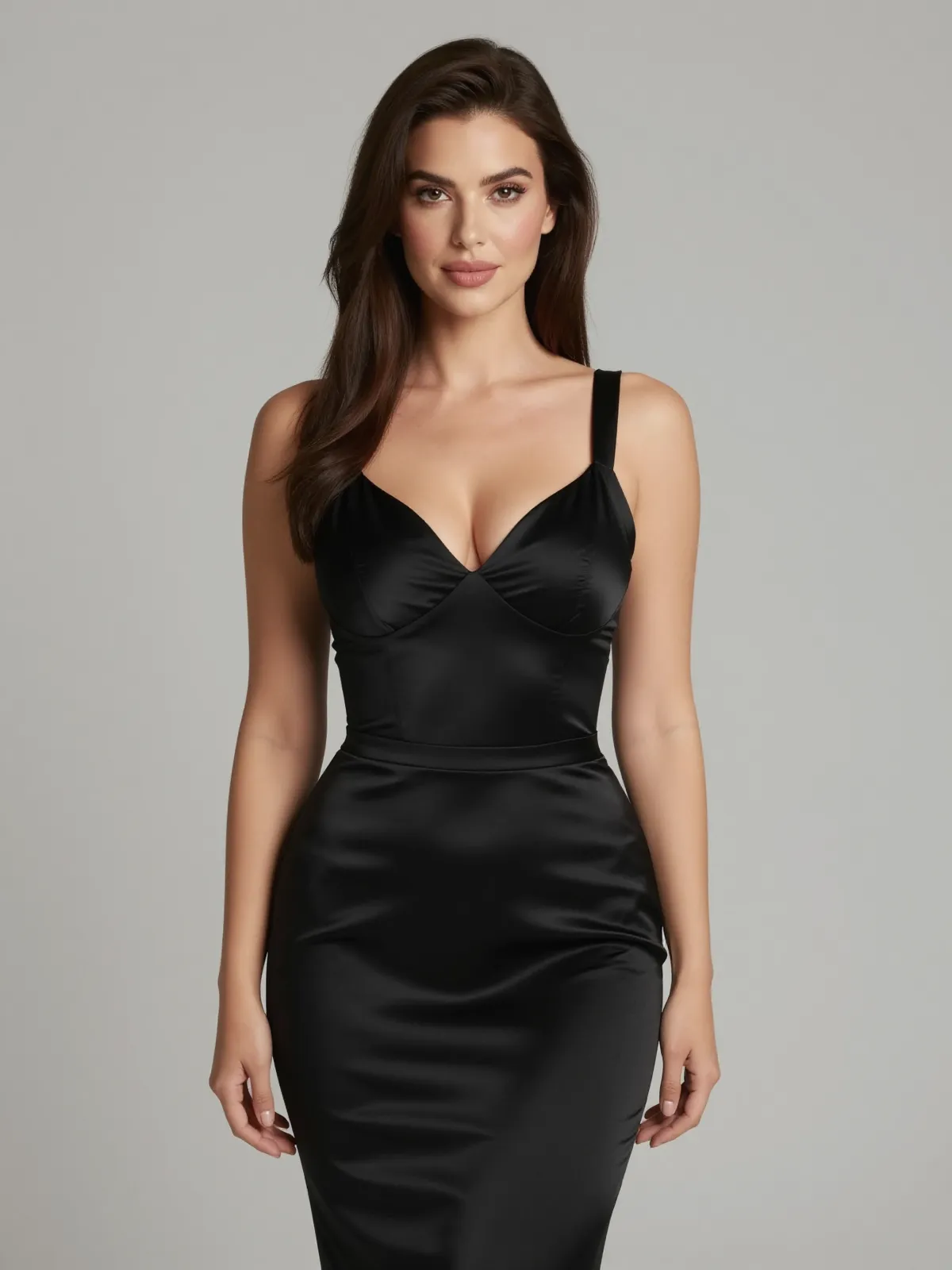
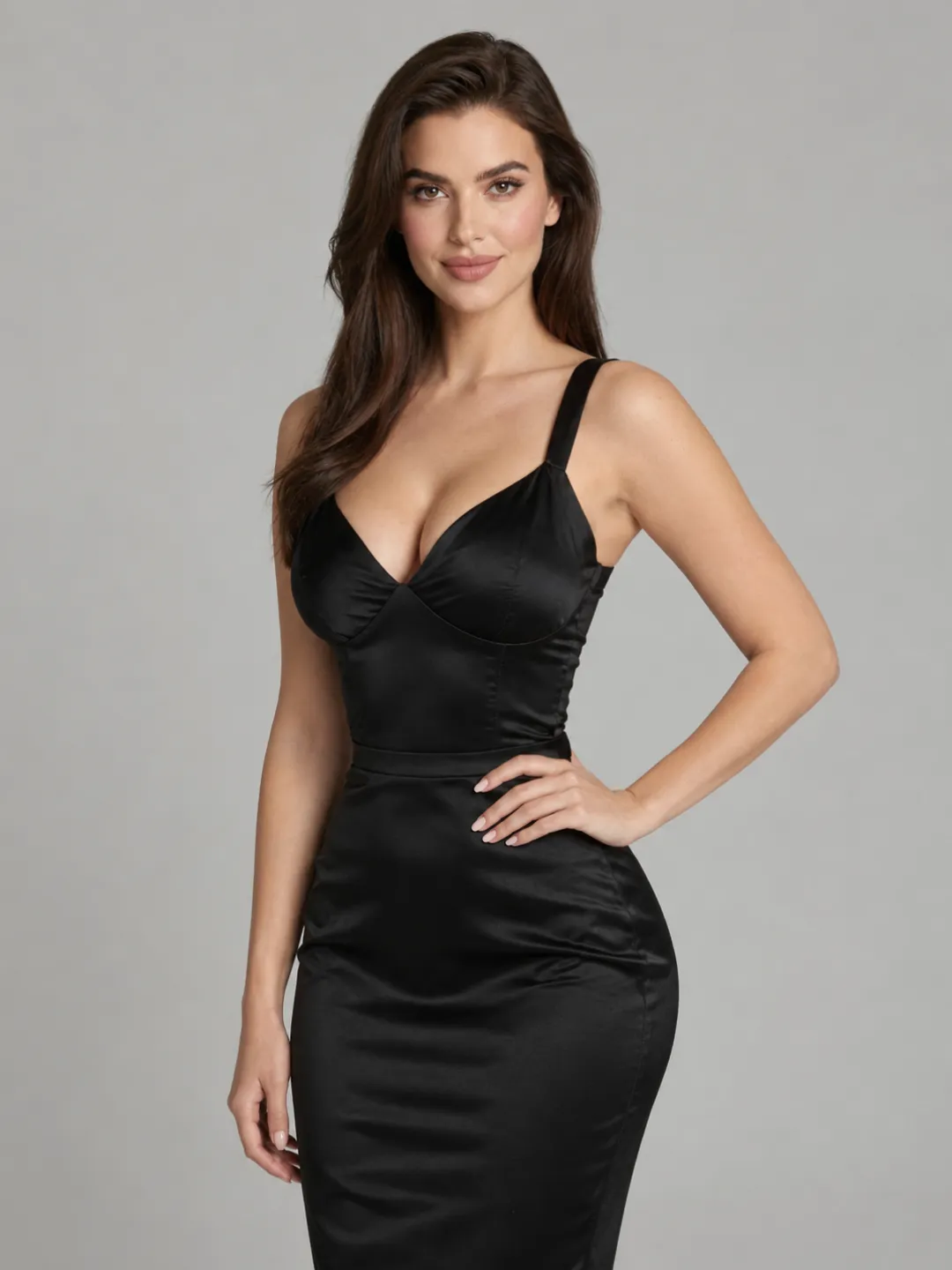
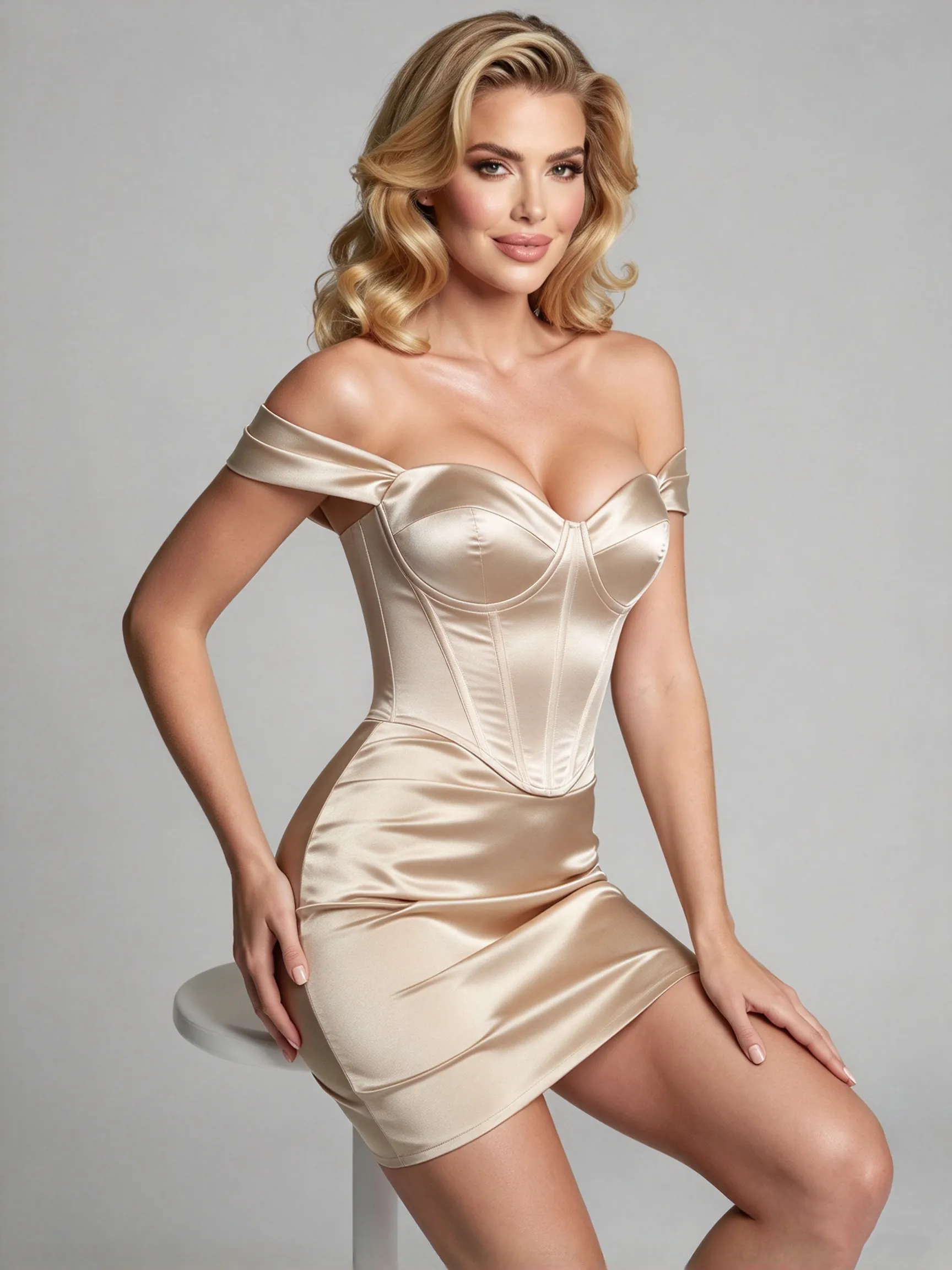
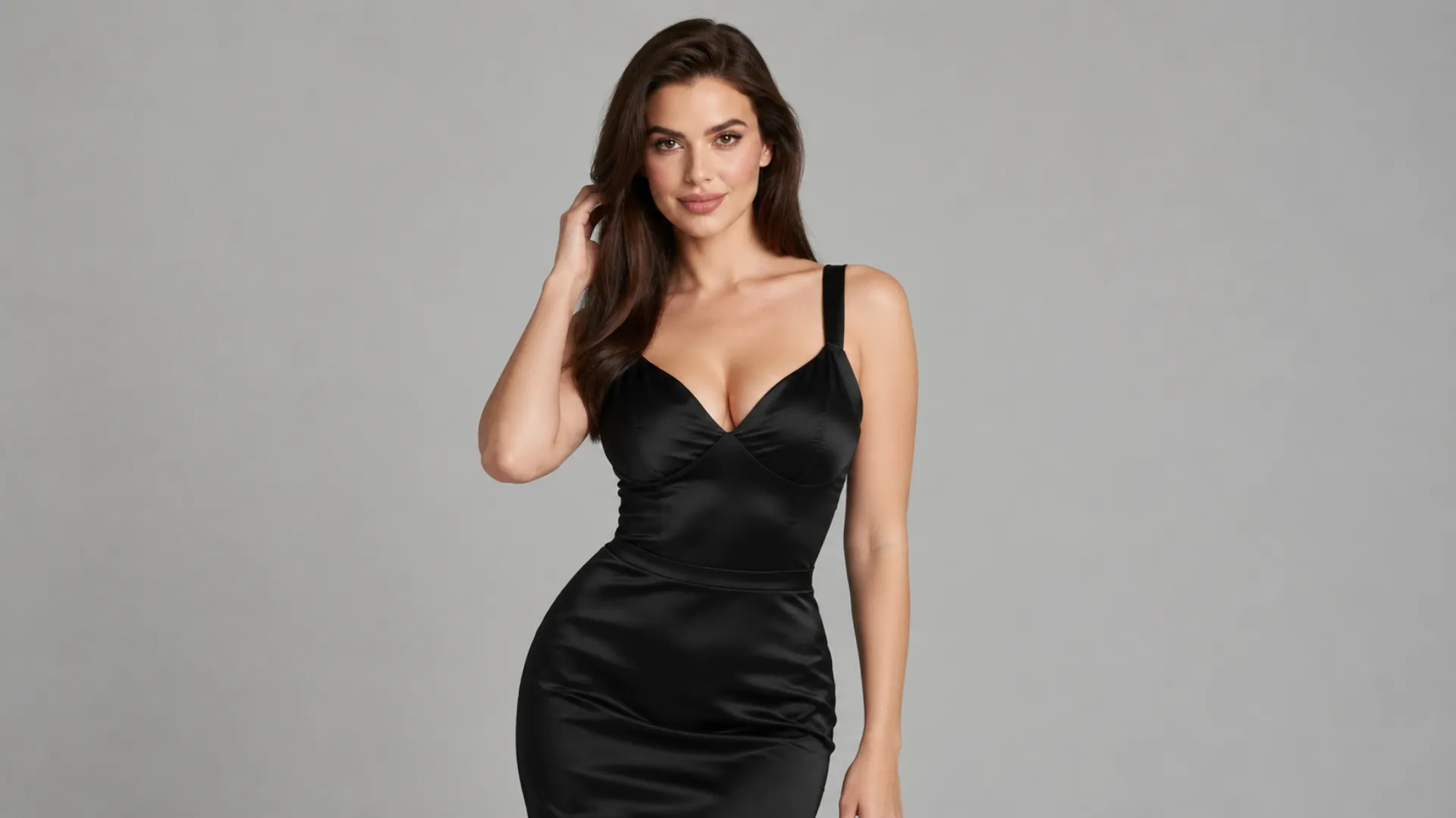 NSFW Character Showcase
MiniMax H3 Ref2VA vs FL2VA: Which Workflow Should You Use?
MiniMax H3 uses separate task-specific checkpoints. The FL2VA checkpoint handles text-to-audio-video and first- or last-frame-conditioned generation. The Ref2VA checkpoint handles reference-to-audio-video using images, videos, audio, or mixed references.
| Your goal | Recommended route |
|---|---|
| Generate a scene from text | T2VA with FL2VA |
| Animate one exact opening frame | I2VA with FL2VA |
| Connect an opening and closing frame | FL2VA |
| Preserve a character without forcing the image to be frame zero | Ref2VA |
| Transfer movement or camera behavior | Ref2VA |
| Reference a voice, soundtrack, rhythm, or sound texture | Ref2VA |
| Edit or continue an existing audiovisual source | Ref2VA |
The distinction is the role of the asset. An image connected as a first frame establishes the actual opening composition. The same image used in Ref2VA may instead define a character's face, body, styling, environment, or pose without becoming the first frame.
This matters for NSFW character workflows. A single opening image can anchor one clip, but it may not provide enough information when the body turns, the shot becomes wider, or another subject creates temporary occlusion. Ref2VA can use additional identity views, provided those views describe the same character.
The two workflows also use different diffusion weights. Loading FL2VA weights into a Ref2VA workflow does not create multimodal reference behavior simply because the surrounding nodes appear compatible.
How to Set Up MiniMax H3 Ref2VA in ComfyUI
1. Load the Ref2VA Model and Workflow
Update ComfyUI before opening the workflow. Recent native MiniMax H3 nodes and templates may not exist in an older installation.
Open the Template Library and search for MiniMax H3 R2V, or use the current official workflow JSON. ComfyUI may use "R2V" in the template name while the checkpoint and task use ref2va. They refer to the same reference-to-video route here.
The standard ComfyUI folder structure places the Ref2VA diffusion model in models/diffusion_models, the text encoder in models/text_encoders, the video and audio VAEs in models/vae, and the optional turbo LoRA in models/loras.
Confirm that the workflow loads the Ref2VA diffusion model rather than the FL2VA version. Use the model files named by the current template because BF16, INT8, NVFP4, and other variants may require different loaders or memory configurations.
For the first test, use the normal generation path. The optional four-step turbo LoRA is useful for faster iteration, but the official documentation notes a possible reduction in motion and audio quality.
2. Add One Approved Character Reference
Begin with one character image rather than a complete gallery. The face should be clear, the intended body area should be visible, and the pose should have readable boundaries.
For a close-up speaking shot, a sharp face and upper-body reference may be sufficient. For a seated pose adjustment or wider sensual movement, use an image that shows the shoulders, torso, waist, hands, and starting posture. Do not ask a tightly cropped portrait to provide body information it never contained.
Connect the image to the first picture-reference input. It becomes <Picture 1> in the prompt. Additional pictures are numbered in the order in which they are connected.
The strongest identity image should establish:
- Face shape and recognizable features
- Hair and skin appearance
- Body proportions visible in the target shot
- Styling or state of dress that should remain stable
- Starting pose and body direction
Do not begin by connecting several versions with different faces, hairstyles, proportions, or visual styles. More references only help when they add compatible information.
3. Connect a Motion Reference Video
A reference video can provide body movement, camera behavior, editing rhythm, an existing scene to modify, or a point from which the target should continue. The prompt must specify which relationship is intended.
Some ComfyUI video loaders return a VIDEO object while the MiniMax H3 reference input expects an extracted image sequence. If the ports do not connect, use the native Get Video Components node to expose the video frames, audio, frame rate, and related components. Connect the frame sequence to the reference-video input.
If the source soundtrack is also needed, connect the extracted audio separately. Do not assume that loading a video automatically assigns its audio as a usable <Audio N> reference.
For motion transfer, choose a source whose starting posture resembles the target character's pose. A seated character and a seated movement source are easier to reconcile than a close portrait and an immediate full-body standing turn.
The movement should also remain visually readable. Heavy body overlap, hands hidden behind the torso, long hair covering joints, or two performers crossing each other can force the model to reconstruct information that neither source clearly provides.
State that the video supplies motion rather than identity:
<Subject 1> takes her identity and appearance from <Picture 1>.
<Video 1> supplies only the slow seated posture adjustment and camera rhythm.
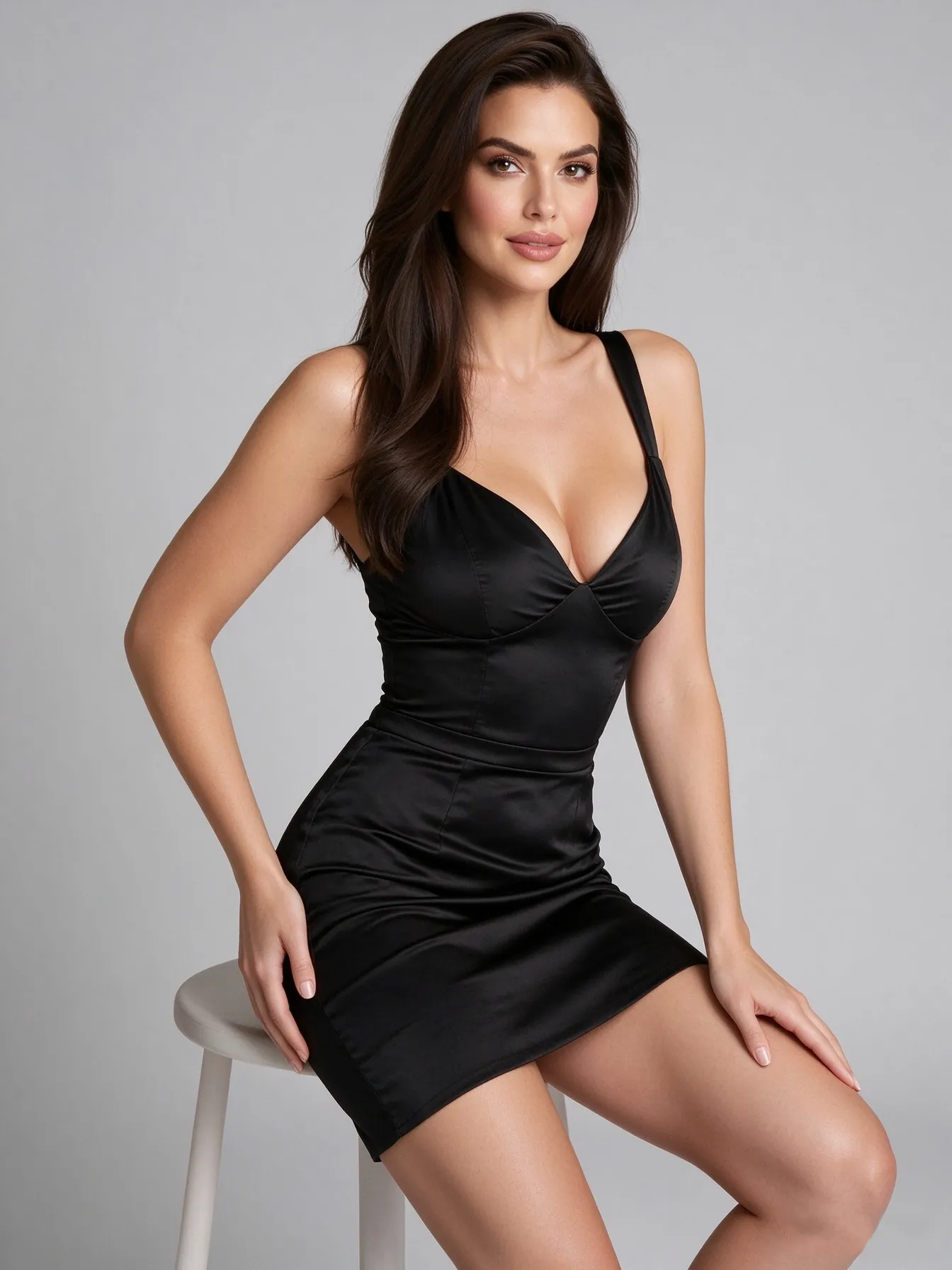
The performer in <Video 1> is not retained in the target video.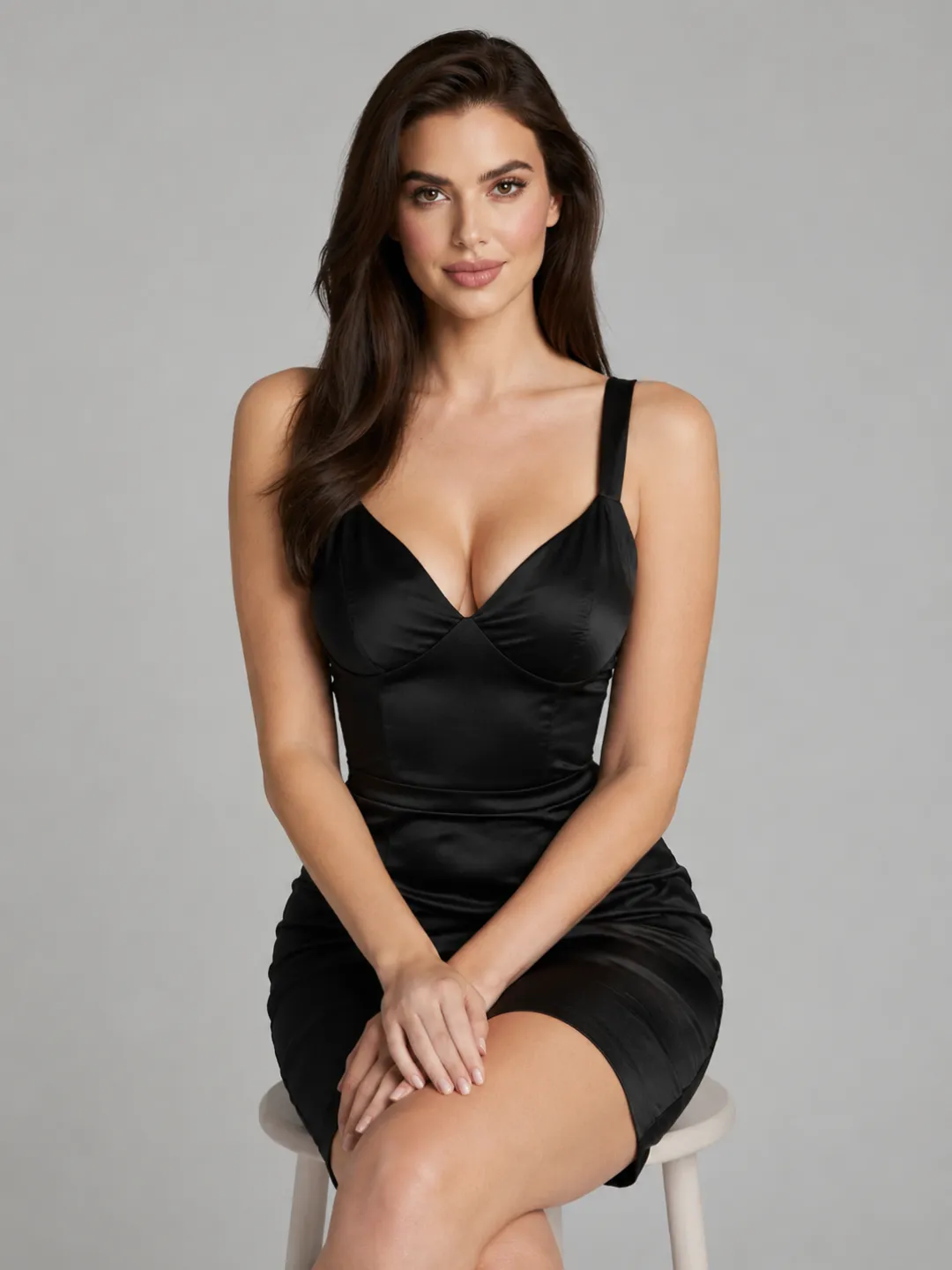 Character Reference
 Motion Reference
 Generated Result
4. Add Audio Only When It Has a Clear Role
Ref2VA can use audio extracted from a reference video or loaded as a separate file. Under the current official input rules, audio cannot be the only reference medium; it must accompany an image or video.
Decide whether the source should be:
- A voice-timbre reference
- A delivery or emotional reference
- Reused dialogue or lyrics
- Reused background music
- A rhythm or music-style reference
- An environmental sound reference
Referencing a voice is not the same as copying its original signal. If the character should speak new dialogue with a similar vocal quality, define the source as a voice-timbre reference and write the new dialogue in the prompt.
Audio labels are numbered independently from video labels. <Video 1> and <Audio 1> are not automatically understood as parts of the same file unless the prompt states their relationship.
Use only creator-owned or authorized face, video, and voice references. Ref2VA should not be used to impersonate an identifiable person without permission.
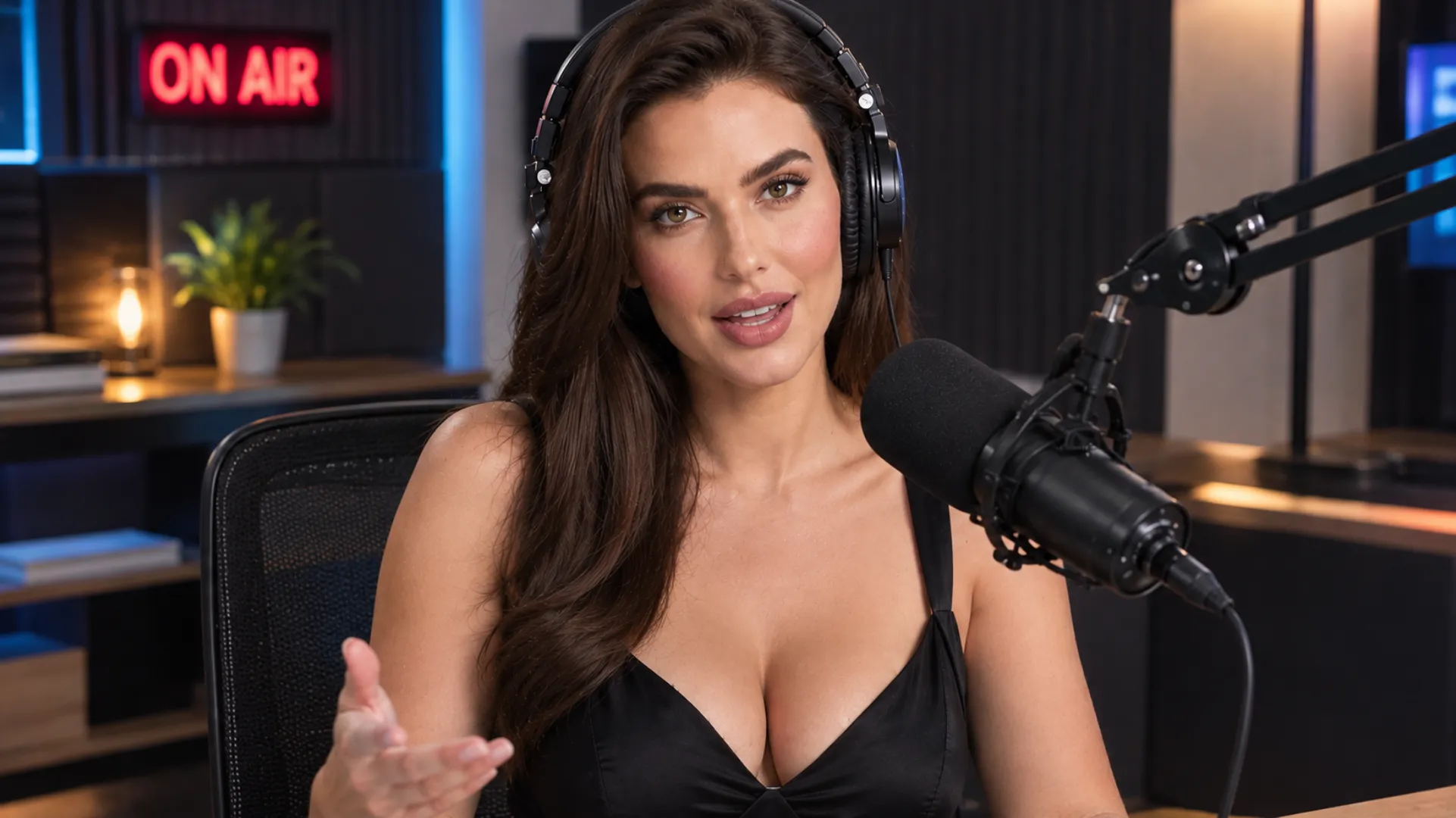 Audio Reference Scene
5. Map References Consistently
Reference each input with the same label throughout the prompt:
<Picture 1> defines the appearance of <Subject 1>.
<Picture 2> provides a wider view of the same character.
<Video 1> provides the body movement and camera timing.
<Audio 1> provides the voice timbre for <Subject 1>.
Do not mention a picture, video, or audio number that is not connected. Do not change the meaning of <Picture 1> later in the prompt.
The workflow currently supports multiple images, videos, and audio clips, but maximum capacity is not a recommended starting configuration. Begin with one image and one movement source. Add another reference only when it contributes information the current set lacks.
6. Run a Short Validation Clip
The first generation should contain:
- One character
- One main action
- One shot
- A fixed or restrained camera
- A simple environment
- No unnecessary dialogue or music
Check the character before increasing complexity. The face, body proportions, styling, visible body coverage, and pose direction should remain coherent from the opening through the main movement.
Once the basic clip works, add one variable at a time: a second character view, reference video, camera movement, audio, or another person. This makes it possible to identify which new source changed the result.
How to Keep an NSFW Character Consistent Across References
Use Different Views of the Same Character
A useful reference set may contain a clear facial view, a medium shot, and one wider body view. These images should provide different information while preserving the same identity.
The face, hair, skin appearance, body proportions, and distinguishing styling details should agree. If one image changes the facial structure or visual style, the model receives two competing character definitions.
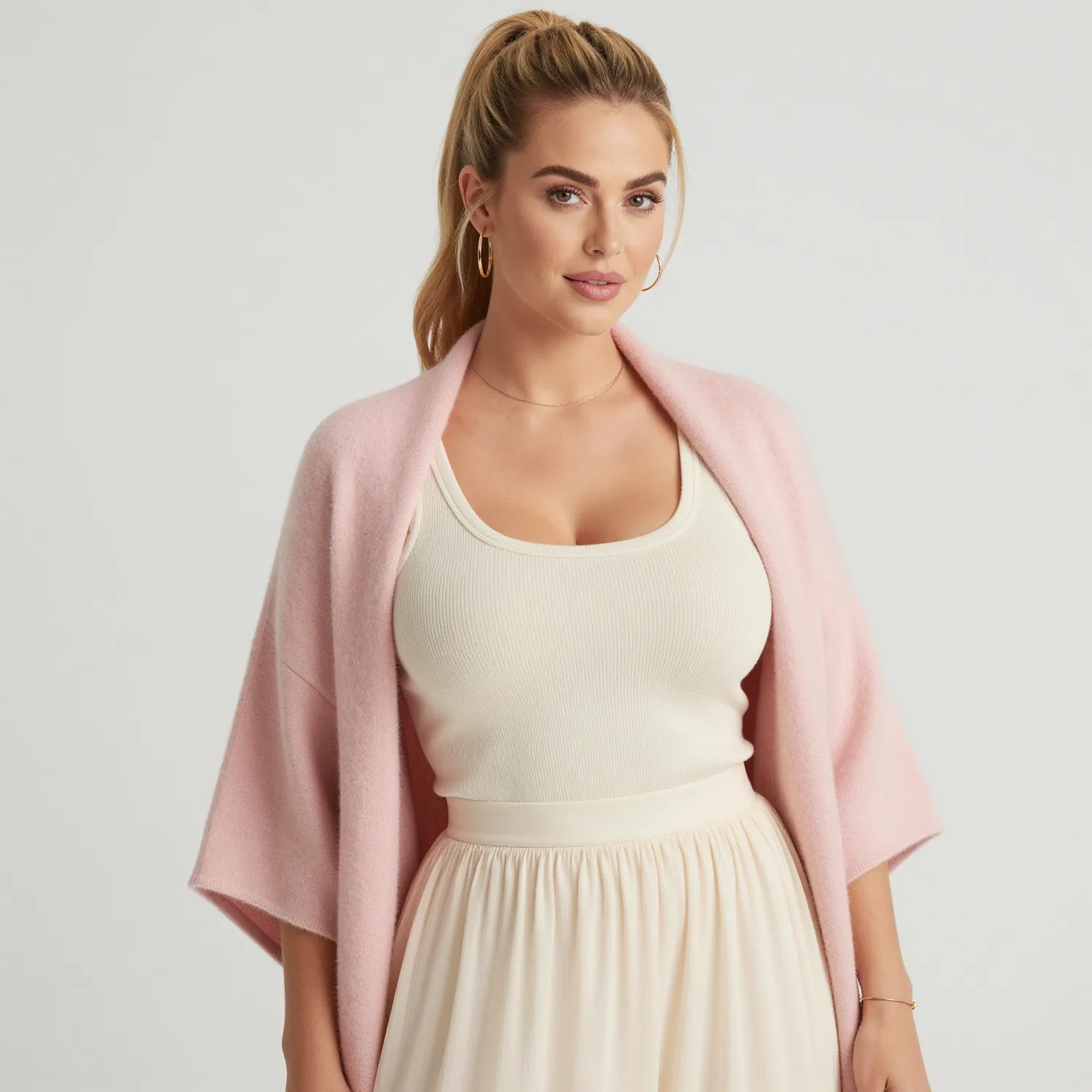
References should also agree on the visual state required by the target shot. If one image presents one outfit or level of body coverage while another presents a substantially different state, decide which one the target should preserve and remove the conflicting source.
Use Together
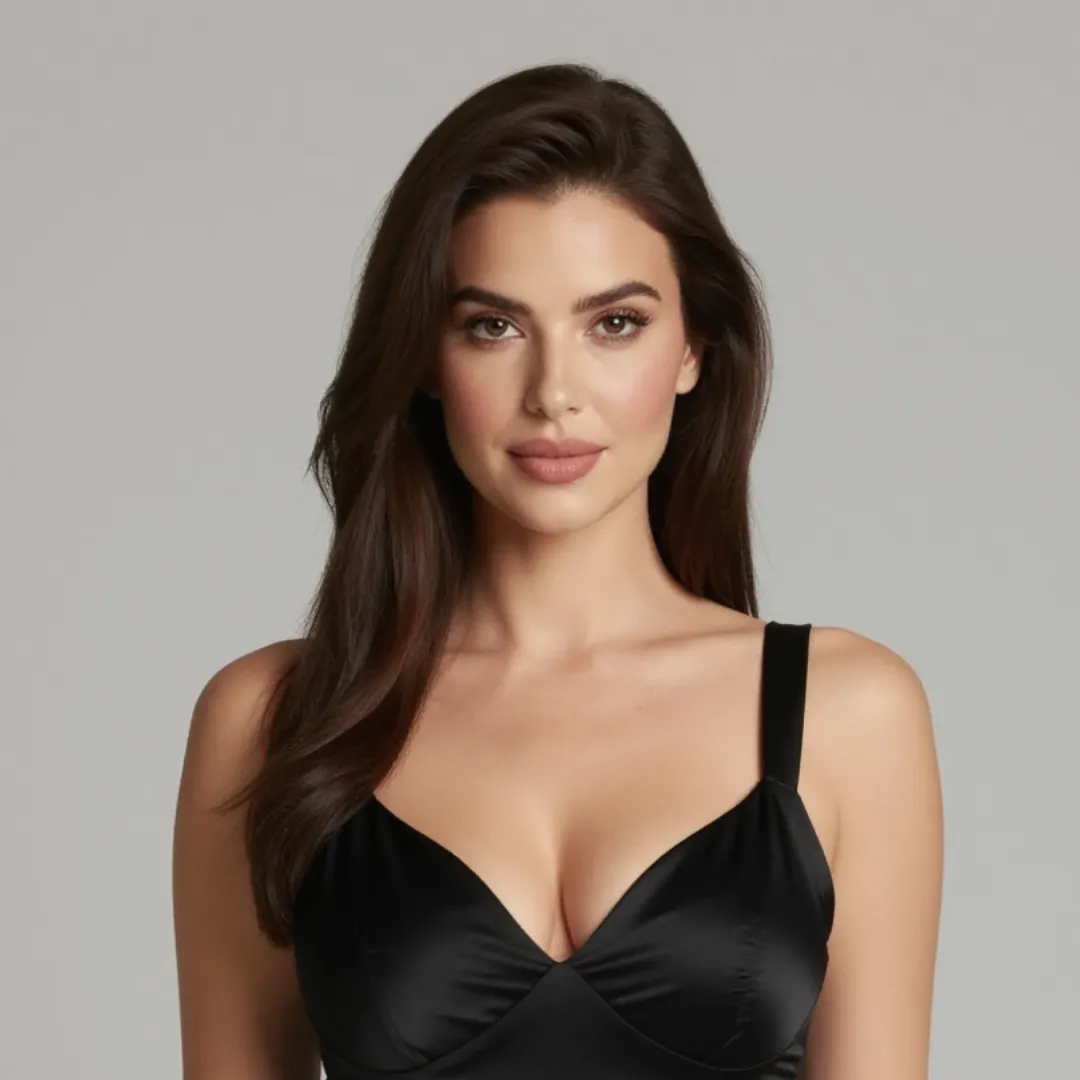
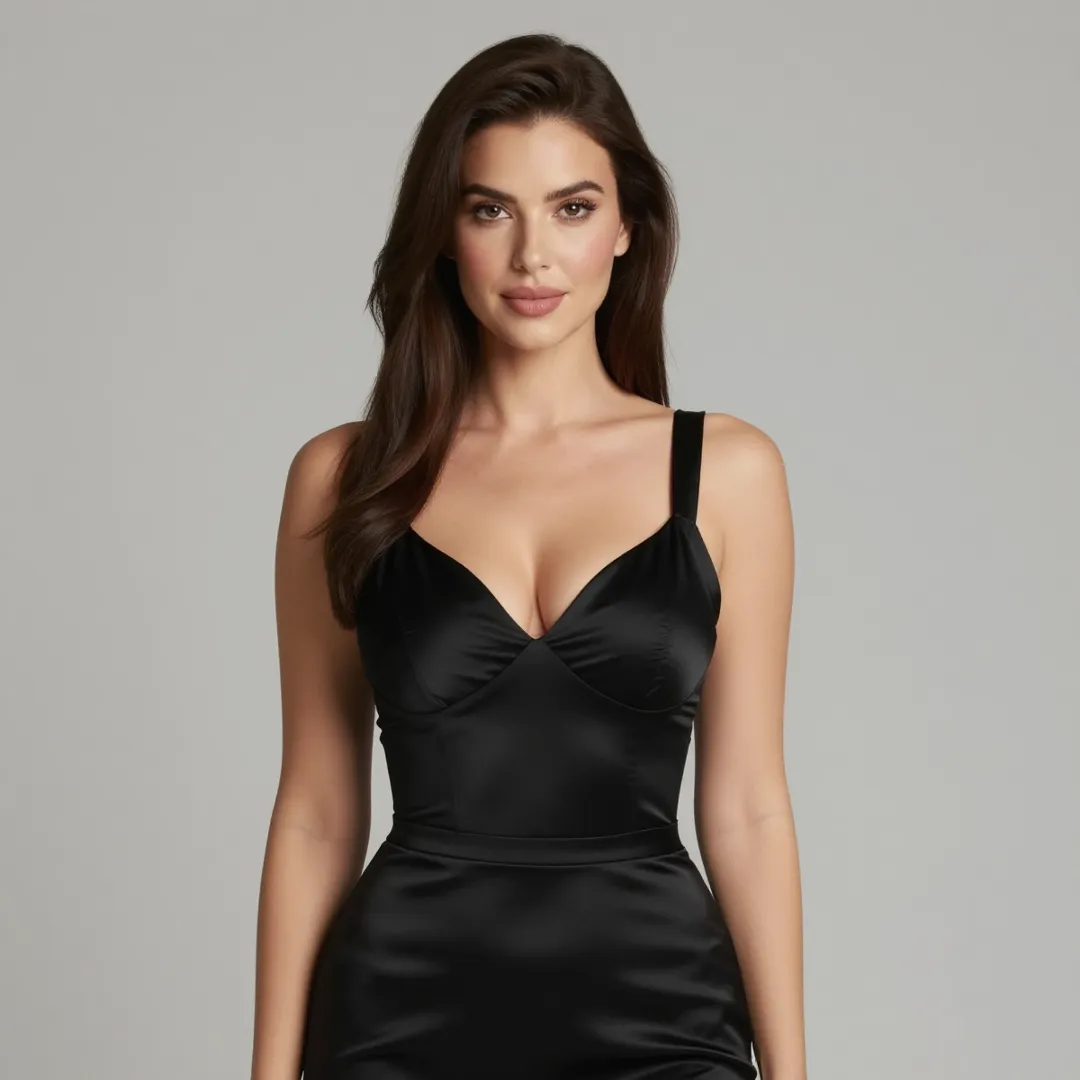
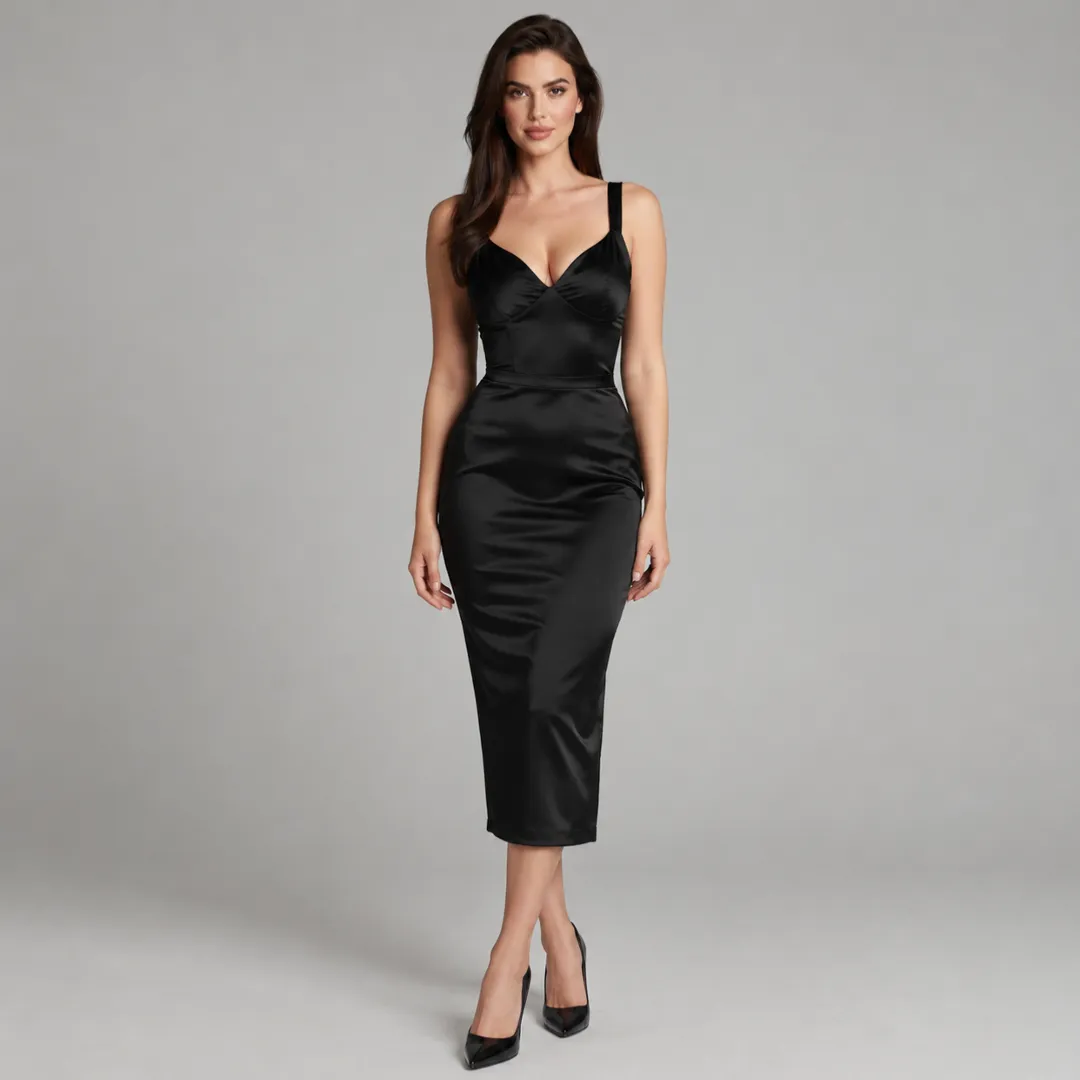
Do Not Mix
Match the Reference Image to the Movement
Choose an identity image that already shows the body area involved in the action. If the movement crosses the waist, changes a seated posture, or places a hand against the torso, those areas should be visible and structurally clear in the source.
Movement difficulty increases when the model must reveal unseen anatomy, separate overlapping limbs, or maintain several contact points. This is why a visually simple pose can be a better identity reference than a more dramatic image.
Keep the Motion Source from Replacing the Character
A motion-reference video may contain a performer whose face, body, clothing, or environment is visually stronger than the identity image. The model may preserve more of that source than intended.
Define the target subject before describing the movement. Explicitly state that the reference performer is not retained. If identity still weakens, choose a movement clip in which the source face is less prominent or the pose is more compatible with the target image.
Add Close Interaction in a Separate Test
Two-person interaction introduces another identity, more limbs, temporary occlusion, and several moving contact points. Do not use it as the first test of a new character.
Validate the main character alone, then introduce the second subject in a short, controlled shot. Keep both bodies visually separated where possible and avoid asking several hands, faces, and camera movements to change simultaneously.
For a longer sequence, create separate clips for the introduction, pose change, close interaction, and final shot. Reuse the approved identity references across those clips instead of forcing one generation to perform every transition.
How to Prompt Ref2VA for NSFW Character and Motion Consistency
A Ref2VA prompt needs to explain both the target video and the relationship between the target and its source materials. Repeating appearance adjectives does not replace clear reference assignments.
MiniMax's full-reference prompt format organizes a Ref2VA request into six sections:
subject_definitions:
<Subject 1> is the fictional 18+ woman whose facial identity, long dark hair, body proportions, and black satin styling come from <Picture 1>.
<Picture 2> provides a wider view of the same character and confirms her body proportions and starting posture.
<Video 1> provides a slow seated pose adjustment and restrained camera push.
<Audio 1> is the voice-timbre reference for <Subject 1> (S1).

summary:
[reference generation + audio reference]
The target is a single-shot private-studio video of <Subject 1>. Her identity and styling follow <Picture 1> and <Picture 2>. Her movement and camera timing follow <Video 1>. Her voice timbre references <Audio 1>.

retention_analysis:
<Subject 1>: fully_preserved - retain her face, hair, body proportions, satin styling, and overall visual state.
<Video 1>: reference - transfer the posture change and camera rhythm without retaining the source performer or environment.
<Audio 1>: reference - guide vocal timbre without copying the recording.

detailed_description:
The video uses realistic photographic lighting in a quiet private studio.
[Shot 1] <Subject 1> sits in a three-quarter medium shot. Following the controlled movement from <Video 1>, she slowly shifts her weight, turns one shoulder toward the camera, and settles into the new pose. The camera makes one restrained forward movement without changing angle. <Subject 1> (S1), using the calm voice quality referenced from <Audio 1>, says, <d>[English] Stay here for a moment.</d>

overall_soundscape:
Quiet room tone, subtle fabric movement, and the referenced vocal delivery.

non_diegetic_music:
No background music.
This prompt defines identity once and spends the remaining detail on motion, camera, and sound. Avoid repeating the character's face and body description in every field.
If the output needs one continuous shot, do not add several unrelated camera instructions. If a second action is important enough to require a new pose, new framing, or new contact pattern, it may deserve a separate clip.
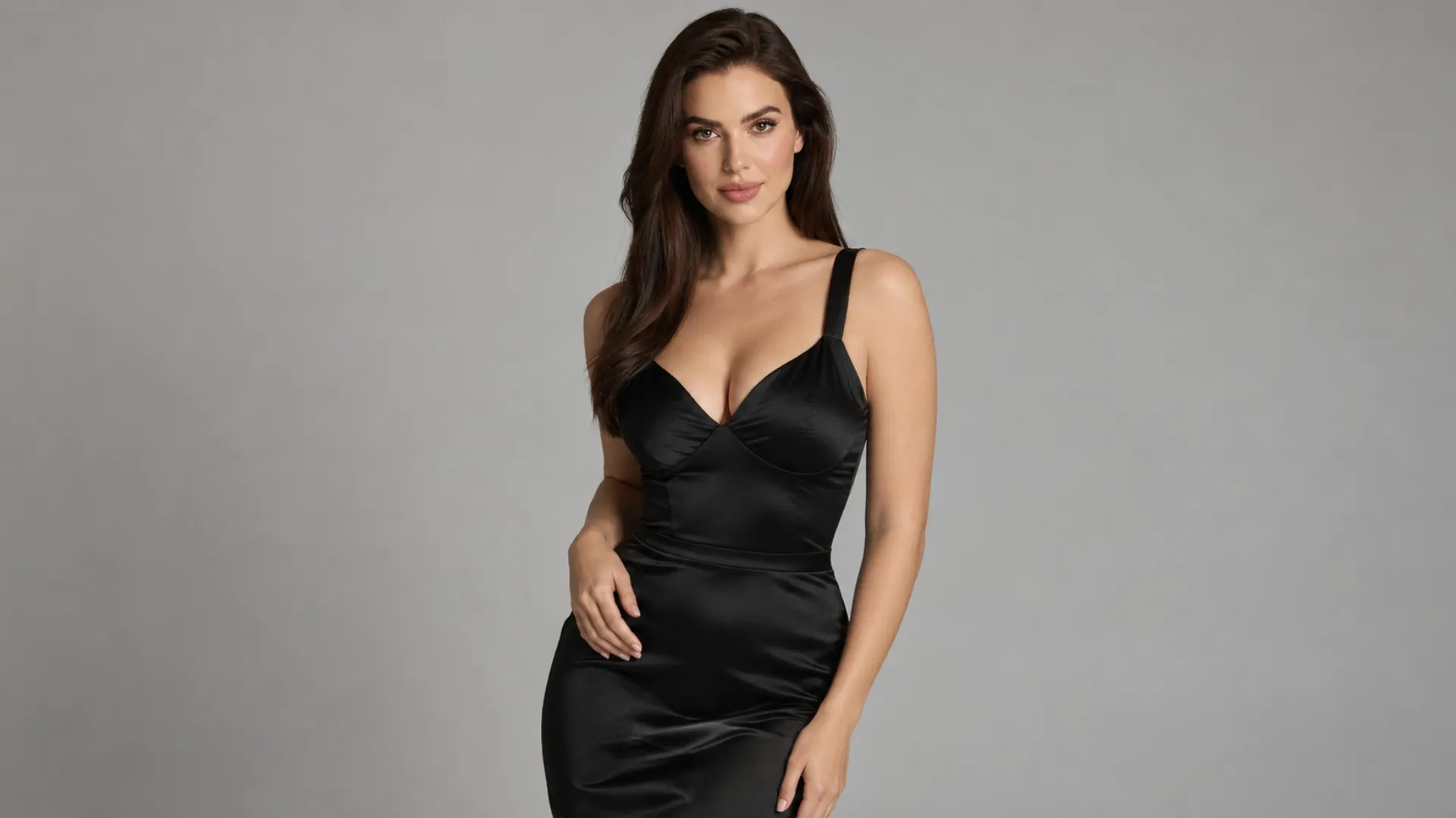 NSFW Scene
A Practical MiniMax H3 Ref2VA Workflow for NSFW AI Videos
A reusable production workflow should increase complexity only after the previous layer remains stable.
Step 1: Approve the Character Image
Choose one image that establishes the identity, body direction, styling, and visual state. If no suitable image exists, create one with the AINSFW.AI Realistic Girl Generator, Anime Girl Generator, or Image Generator from Tags.
Do not continue simply because the image is attractive. Confirm that it provides enough visual information for the first planned action.
Step 2: Create an Identity Test
Generate a short close or medium shot with eye movement, breathing, a slight expression change, or a small head turn. This determines whether the character remains recognizable before a larger body movement is introduced.
Step 3: Add Controlled Body Motion
Use a wider identity reference and request one shoulder, torso, waist, or seated-pose adjustment. Keep the camera fixed during the first body-motion test.
If the character changes during a small movement, a more complex motion source will usually make that change more visible.
Step 4: Introduce the Motion Reference
Connect one short video with a compatible starting pose. State that it provides movement and camera timing rather than identity.
Compare the new output with the previous identity test. If the target begins resembling the reference performer, simplify the source video or make the subject assignment more explicit.
Step 5: Add Camera and Audio
Once the body movement is stable, introduce one camera behavior. Add voice, ambience, or music after the visual references work together.
Avoid changing the movement source, camera, audio, prompt structure, and generation settings in the same test. A successful result is more valuable when its cause is understandable.
Step 6: Build Independent Video Shots
Create separate clips for different production roles:
- Identity shot: Close or medium framing with subtle expression.
- Pose shot: One controlled body or posture transition.
- Wider motion shot: A larger movement supported by a wider reference.
- Interaction shot: A separately tested clip with additional contact or another subject.
Generate each clip from the approved reference set rather than using the previous generated result as the only source for the next clip. This reduces cumulative identity drift.
If local model files, reference mapping, and ComfyUI maintenance are more control than the project needs, use the approved character image with the AINSFW.AI Image-to-Video Generator. This is the simpler route when the task begins with one image and does not require several video or audio references.
MiniMax H3 Ref2VA FAQ
Is MiniMax H3 Ref2VA the same as MiniMax H3 R2V?
In current ComfyUI documentation, the template may be named MiniMax H3 R2V, while the underlying task and checkpoint use ref2va. Here, both names refer to the reference-to-audio-video workflow rather than the FL2VA keyframe route.
Can Ref2VA use multiple character images?
Yes. The current official workflow supports multiple picture references. Use additional images to provide compatible angles, body information, styling, or environment details. Images that disagree on identity or proportions may reduce consistency.
Why can't a loaded video connect to the Ref2VA input?
The loader may output a VIDEO object while the reference input expects extracted frames. Use ComfyUI's native Get Video Components node when necessary to separate the frame sequence, audio, and video metadata.
Can Ref2VA combine images, video, and audio?
Yes. Ref2VA is designed for mixed multimodal references. Connect at least one image or video, label each source consistently, and state whether each reference provides identity, motion, camera behavior, reusable audio, or a voice characteristic.
Does Ref2VA guarantee a consistent NSFW character?
No. Ref2VA provides more reference information, but consistency still depends on source agreement, visible body information, pose compatibility, prompt clarity, motion complexity, and occlusion. Short tests and controlled reference additions remain necessary.